The comparison, honestly stated
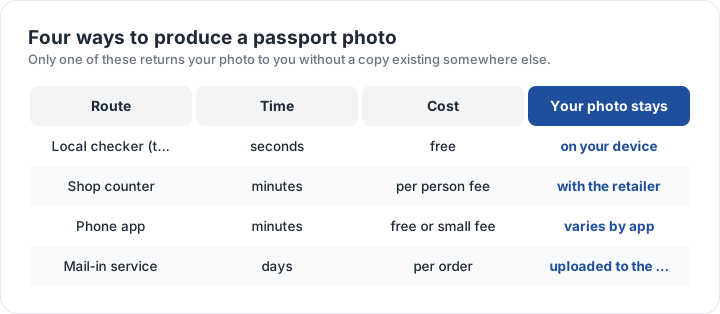
A local checker costs nothing, takes seconds and keeps the file on your device — but it only measures; it does not produce a photo unless you also have a camera. A shop counter takes minutes, costs a per-person fee and hands you prints, with your photo existing in the retailer’s system as well. A phone app takes minutes, is free or nearly so, and usually uploads the image to complete its work. A mail-in service takes days, costs per order, and requires the photo to leave your device.
That last column is the one people skip. Three of the four routes create a copy of your face somewhere else. For most passport applications that is an acceptable trade for convenience, but it is worth knowing rather than assuming, particularly because a passport photo is the input to face matching.
What each route is actually good at
A counter is good at speed and at the common blocks, and it re-shoots free within the visit. An app is good at file arithmetic: exact crops, pixel windows and kilobyte ceilings for a digital submission. A mail-in service is good at unusual sizes and at printing blocks a local counter cannot set. Your own camera is good at control — light, background, timing and a dozen frames to choose from.
The failures are equally specific. A counter fails on unusual sizes and on endorsed photos. An app fails when the underlying photograph is wrong, because no crop fixes light. A mail-in service fails a deadline. Your own camera fails when the light is behind you or the head sits too small in the frame, which is exactly what a measurement catches before you print.
The checker reports measurements, not approval. It tells you which published rule your file fails and by how much, from the pixels of the file in your browser. The decision always belongs to the authority you file with.
Which route suits which situation
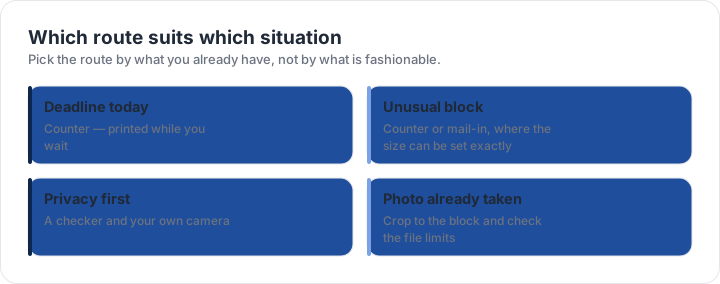
- Deadline todayA counter: printed in front of you, re-shootable on the spot.
- Unusual block sizeA counter with manual entry, or a mail-in service that sets sizes exactly.
- Privacy firstYour own camera and a local checker; nothing leaves the device.
- Photo already takenCrop to the block, check the file limits, and print or upload.
- Stamp or endorsement neededA commercial photographer — software cannot provide either.
Two routes can be combined without paying twice. Take the photograph at home against a plain wall, run it through the checker to confirm the block and the background, and only then decide whether to print it locally or hand the file to a service. That order puts the measurement before the spending, which is where it belongs.
How to decide in one question
Ask whether the photograph is already good. If it is, the task is file production and an app or a print shop finishes it. If it is not, the task is photography, and the answer is a counter or your own camera — no tool can repair a shadow, a squint or a background that reads grey. The app page covers the file-production half in detail, the near-me page covers the four routes with the published fees we could re-read, and the size matrix tells you which block you are aiming at in the first place.
One further caution on any route that ends in an upload: the digital rules are stricter than the print rules in a way that is invisible on screen. A file can be the right size, the right shape and the right format, and still fail for sitting below a kilobyte floor after compression. The digital rules page lists the floors and ceilings per application.
| Requirement | What the official rule says | |||||||
|---|---|---|---|---|---|---|---|---|
| ('Country / document', 'United States — U.S. passport — printed photo') | ('Printed size', '51 × 51 mm (2 × 2 in)') | ('Head height', '25–35 mm chin to top of head') | ('Digital upload', 'Not applicable — this one is filed on paper') | ('File format & size', 'Photo paper, no file limits') | ('Background', 'Plain white or off-white, no shadows') | ('Recency', 'Taken within the last 6 months') | ('Glasses', 'No glasses — the rule changed in November 2016') | ('Official source', 'Official page') |
| ('Country / document', 'United Kingdom — UK passport — digital photo') | ('Printed size', '35 × 45 mm') | ('Head height', '29–34 mm chin to top of head') | ('Digital upload', '600 × 750 px minimum') | ('File format & size', 'JPG, JPEG, PNG, under 10 MB') | ('Background', 'Plain light-coloured background, no objects behind you') | ('Recency', 'Taken in the last month') | ('Glasses', 'No glasses (remove them if you can do so without discomfort)') | ('Official source', 'Official page') |
| ('Country / document', 'Canada — Canadian passport — printed photo') | ('Printed size', '50 × 70 mm') | ('Head height', '31–36 mm chin to top of head') | ('Digital upload', 'Not applicable — this one is filed on paper') | ('File format & size', 'Photo paper, no file limits') | ('Background', 'Plain white or light-coloured background') | ('Recency', 'Taken within the last 6 months') | ('Glasses', 'Dark glasses and tinted lenses not accepted; clear prescription glasses must not hide the eyes') | ('Official source', 'Official page') |
| ('Country / document', 'Australia — Australian passport — printed photo') | ('Printed size', '35 × 45 mm') | ('Head height', 'Not specified as a fixed band — keep the head centred and uncropped') | ('Digital upload', 'Not applicable — this one is filed on paper') | ('File format & size', 'Photo paper, no file limits') | ('Background', 'Plain light background') | ('Recency', 'Taken within the last 6 months') | ('Glasses', 'No glasses; no glare across the eyes') | ('Official source', 'Official page') |
Specification source: https://travel.state.gov/content/travel/en/passports/how-apply/photos.html · checked October 2026 · DS-11, DS-82 by mail, and any paper application.
Specification source: https://www.canada.ca/en/immigration-refugees-citizenship/services/canadian-passports/photos.html · checked October 2026 · Paper application, 2 identical photos.