
Two files, one application
The photograph is 51 × 51 mm — a 2 × 2 inch square — on a plain white or light background with no shadow, taken within the last six months, with the head 25–35 mm from chin to top of head. In shape and composition this is the same block used by U.S. federal forms, so a photo prepared for one is usually the right shape for the other.
The upload is a square JPG or JPEG of at least 600 × 600 pixels, between 20 KB and 1 MB, and it is checked automatically at the portal. Tinted lenses are not acceptable, and glare across the eye is treated as a defect, so the safe route is to remove glasses for the photograph.
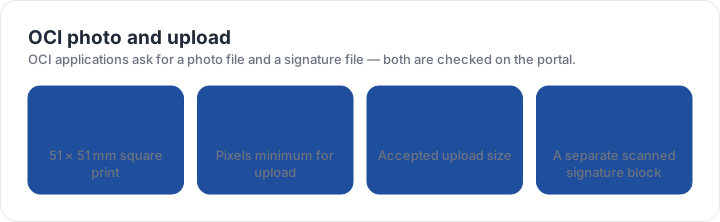
The signature block
A signature is not a photograph, and the two files have different failure modes. Sign in dark ink on plain white paper, without lines or a box around the signature, and keep the pen stroke inside the frame you intend to scan. Then crop tightly around the mark: a signature photographed or scanned on a patterned surface, or with a visible desk edge, is the single most common OCI upload problem.
Two practical points. First, scan or photograph the signature before you sign anywhere else, so the paper is clean. Second, check the signature file’s own size window separately from the photo — compressing the two together usually pushes one of them outside the accepted range.
A sharp photo can still be a rejected photo. The rules that send applications back are measurements — the block, the head band, the background lightness — so the fastest check is a measurement, not a second opinion from a friend. The checker takes that measurement from your own file.
Assembling the package
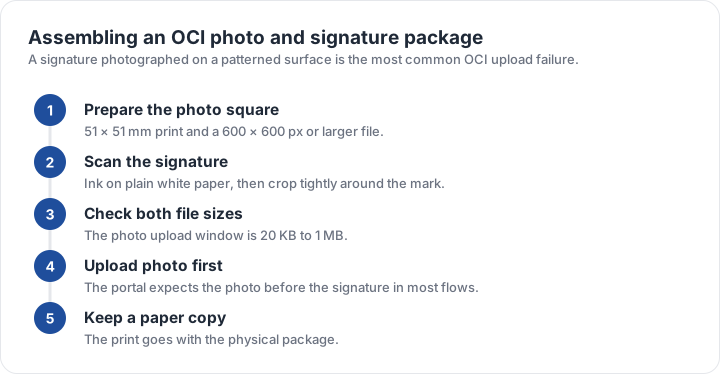
- Prepare the photo square51 × 51 mm print and a 600 × 600 pixel or larger digital file.
- Sign on plain white paperDark ink, no lines or box, plenty of clean margin around the mark.
- Scan and crop the signatureTight around the mark, square-ish, nothing patterned visible.
- Check both files separatelyPhoto 20 KB to 1 MB; keep each within its own limit.
- Upload in the order the portal asksPhoto first in most flows, then the signature file.
- Keep a printed copyThe print goes with the physical package alongside the upload.
The print and the upload are filed together, so they should be made from the same original image. Producing the print from one file and the upload from a different, later crop is how a pair stops matching — and a mismatch between a submitted print and its upload is a question an officer can reasonably ask.
Where OCI uploads fail
Three causes cover most returned OCI uploads: a signature scanned on a patterned or shadowed surface, a photo file that fell below the 20 KB floor during compression, and a photograph whose background was grey rather than the plain white or light background the form asks for. A fourth, less common but more annoying, is a photo file that was renamed to .jpg without actually being converted, which the portal rejects as a broken file.
For the photograph, the OCI checker preset reports the aspect ratio, the pixel dimensions, the file size and the background from your own file. The India size page explains why a passport application uses a different block to an OCI upload, and the size matrix places both blocks in the wider picture.
| Requirement | What the official rule says | |||||||
|---|---|---|---|---|---|---|---|---|
| ('Country / document', 'India — OCI card — printed photo') | ('Printed size', '51 × 51 mm (2 × 2 in)') | ('Head height', '25–35 mm chin to top of head') | ('Digital upload', '600 × 600 px minimum') | ('File format & size', 'JPG, JPEG, under 0 MB') | ('Background', 'Plain white or light background, no shadows') | ('Recency', 'Taken within the last 6 months') | ('Glasses', 'No glasses with tinted lenses; avoid glare') | ('Official source', 'Official page') |
| ('Country / document', 'India — Indian passport — printed photo') | ('Printed size', '35 × 45 mm') | ('Head height', 'Not specified as a fixed band — keep the head centred and uncropped') | ('Digital upload', 'Not applicable — this one is filed on paper') | ('File format & size', 'Photo paper, no file limits') | ('Background', 'Plain white background') | ('Recency', 'Recent — not older than the application period stated on the form') | ('Glasses', 'Remove glasses if possible; glare across the eyes is a common rejection') | ('Official source', 'Official page') |
Specification source: https://ociservices.gov.in/ · checked October 2026 · Overseas Citizen of India application.
Specification source: https://www.passportindia.gov.in/ · checked October 2026 · Passport Seva / MEA passport applications.