What an app actually does
Four operations, and only four. It crops the image to the block your document needs, whether that is the 51 × 51 mm square, the 35 × 45 mm portrait or the narrow 33 × 48 mm Chinese block. It resizes the result to the pixel window the upload expects. It compresses the file under a kilobyte ceiling. And it can add the white border some print layouts want, or lay several copies out on one sheet.
Done well, that is genuinely useful: a photograph taken against a plain wall, with even light and the head roughly right, becomes a compliant file for three different applications in a few minutes. The block and the file limits are arithmetic, and tools are good at arithmetic.
The four things no app can fix
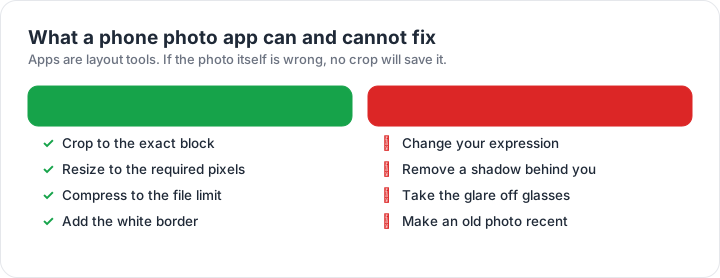
Expression, shadow, glare and age. An app cannot close a mouth, open both eyes or replace a squint with a neutral look, and retouching to do so would itself be a disqualifying edit. It cannot remove a shadow behind the head, because the information is not there to recover — the wall behind you was simply darker. It cannot strip the reflection of a lamp from a pair of lenses. And it cannot make a photograph taken ten months ago recent.
Compression is the one operation worth watching. An app that hits a 240 KB ceiling by dropping the quality setting can soften the eyes past the point a face-matching system finds them usable. Check the exported file at full size rather than at thumbnail scale, and if the eyes look soft, start from a cleaner original instead of compressing harder.
The checker reports measurements, not approval. It tells you which published rule your file fails and by how much, from the pixels of the file in your browser. The decision always belongs to the authority you file with.
Choosing between an app, a counter and your own camera
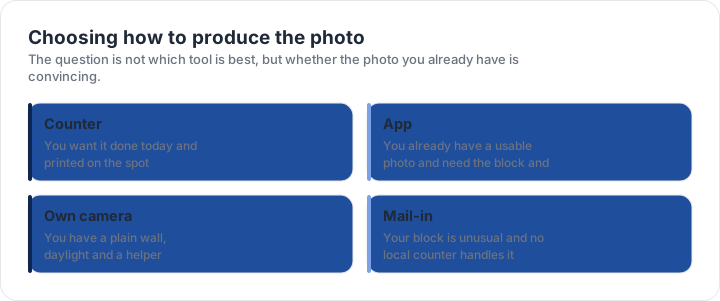
The decision turns on one question: is the photograph you already have convincing? If the light is even, the background plain, the expression neutral and the photo recent, an app finishes the job. If any of those is wrong, the photograph needs retaking, and the choice is then between a counter that prints on the spot and your own camera at home.
Where an app has a real edge is an unusual block with a digital submission: the narrow Chinese 33 × 48 mm photo, or a square upload inside a 240 KB ceiling, which a counter may not produce. Where it has no edge is a stamped or endorsed print — the Canadian studio stamp and the Australian guarantor endorsement cannot be produced by software. The routes comparison sets the four options side by side, and the digital rules page lists which upload window each application applies.
Checking an app’s output
- Check the blockCrop proportion against the millimetre size your document states.
- Check the pixelsBoth sides at or above the floor — 600 × 600 for the U.S., 600 × 750 for the UK.
- Check the file sizeInside the window, remembering the floors of 54 KB and 50 KB.
- Check the formatJPEG is accepted nearly everywhere; HEIC is not.
- Check the eyes at 100 per centIf they are soft, the compression went too far.
- Check the background edgeCompression exaggerates colour cast and noise at the frame border.
That is the same list the checker measures automatically from the exported file, which takes less time than eyeballing each point — and it reports numbers rather than an impression, so you know whether the crop is two millimetres out or twenty. The background guide covers the light faults that compression makes worse rather than better.
| Requirement | What the official rule says | |||||||
|---|---|---|---|---|---|---|---|---|
| ('Country / document', 'United States — U.S. passport — digital upload') | ('Printed size', '51 × 51 mm') | ('Head height', '25–35 mm chin to top of head') | ('Digital upload', '600 × 600 px minimum, up to 1200 px') | ('File format & size', 'JPG, JPEG, PNG, HEIC, HEIF, under 10 MB') | ('Background', 'Plain white or off-white, no shadows') | ('Recency', 'Taken within the last 6 months') | ('Glasses', 'No glasses') | ('Official source', 'Official page') |
| ('Country / document', 'United Kingdom — UK passport — digital photo') | ('Printed size', '35 × 45 mm') | ('Head height', '29–34 mm chin to top of head') | ('Digital upload', '600 × 750 px minimum') | ('File format & size', 'JPG, JPEG, PNG, under 10 MB') | ('Background', 'Plain light-coloured background, no objects behind you') | ('Recency', 'Taken in the last month') | ('Glasses', 'No glasses (remove them if you can do so without discomfort)') | ('Official source', 'Official page') |
| ('Country / document', 'China — Chinese visa — printed photo') | ('Printed size', '33 × 48 mm') | ('Head height', 'Not specified as a fixed band — keep the head centred and uncropped') | ('Digital upload', 'Not applicable — this one is filed on paper') | ('File format & size', 'Photo paper, no file limits') | ('Background', 'Plain white background') | ('Recency', 'Taken within the last 6 months') | ('Glasses', 'No glasses; no headwear except religious headwear') | ('Official source', 'Official page') |
Specification source: https://travel.state.gov/content/travel/en/passports/how-apply/photos.html · checked October 2026 · Online renewal and other digital submissions.
Specification source: https://www.gov.uk/photos-for-passports/rules-for-digital-photos · checked October 2026 · HM Passport Office online application.